Archive
SSAS Data Collection: Collecting Perfmon for SSAS
Applies to Windows7, Windows 2008/R2 and Vista
SQL Server all builds >= SQL 2005
Generally, for troubleshooting SSAS Issues, we recommend to collect below mentioned Perfmon Counters
– All Counters Related to SSAS (MSAS_ or MSOLP$)
For default instance SSAS Counter Name suffix with MSAS.n and for named instance it start with MSOLAP$Instance Name
– System, Process, Processor, Physical Disk, Logical Disk, Memory , Page File
· Got to Run & type Perfmon
· Under Data Collector Set, right click on User Defined and Click New Data Collector Set

· Create New Data Collect Set and Give name as MSTrace & Select Create Manually, Click Next
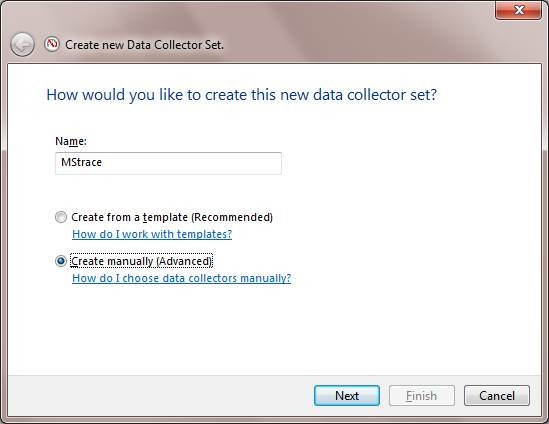
· Click on Add required counters (Sample Interval as 10 Seconds)
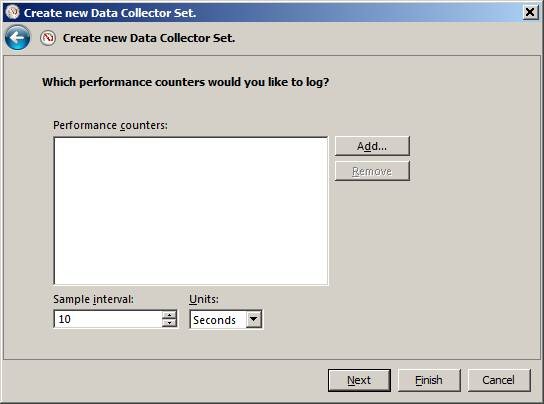

· Here you can specify the Run as user which has Admin Access over box (in case you have logged with credential which is non admin)

- By default Location of Trace file is – %systemdrive%\PerfLogs\Admin\ but you can change it.
Right Click on Newly Created Trace – Mstrace and select Properties – In Properties under directory tab you can specify the location also you can schedule as per your requirement.
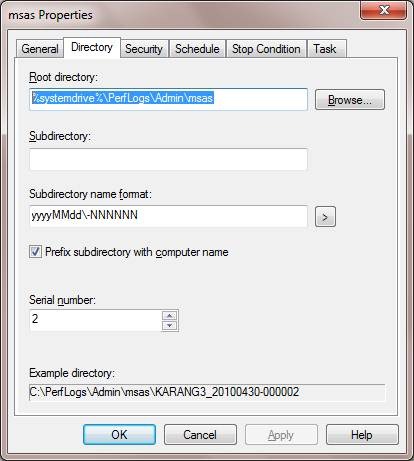
Once you are done with that click OK and Run trace as shown below

Reproduce the issue and collect traces, once you are done just stop traces and check for traces in location which you had provided in Properties.
Getting Deadlock Error During Processing
Issue:
Intermittently Getting below mentioned error during processing
OLE DB error: OLE DB or ODBC error. Transaction (Process ID n) was deadlocked on thread| communication buffer resources with another process and has been chosen as the deadlock victim.
Cause:
A deadlock is a circular blocking chain, where two or more spids are each blocked by the other so that no one can proceed.
You don’t have control over the Select Statement generated by SSAS Processing job (If you are not using Named Query in DSV), in that case you need take care of things from SQL Engine Perspective.
Here are few recommendations, which can reduce deadlock situation:
- Use separate environment for Reporting and Transaction
- Ensure the database design is properly normalized.
- Have the application access database objects in the same order every time.
- Avoid cursors in DW environment
- Use as low a level of isolation as possible for user connections.
- Right indexes for getting correct execution plan (rebuild indexes after huge data modifications)
- Have updated Statistics what will generate a right execution plan
- During DW data refresh don’t do Cube Processing
- In DSV refer View instead of Tables – Processing through a view provides you with an extra layer of abstraction on top of the database is a good design strategy. In the view definition, you can add a NOLOCK or TABLOCK hint to remove database locking overhead during processing.
- Try experiment with MAXDOP setting – Set it to one, in your dev / test environment and see if you can reproduce issue; Keep in mind Performance Caveat of using MAXDOP=1.
Ref:
SSDT Query Builder: MDX Query returning NULL instead of AllMembers
*SSDT – SQL Server Data Tools
*SSMS – SQL Server Management Studio
In SSDT Query Designer getting Null for All members:
One of my customers recently reported this issue so thought of sharing with world……
Demo given below will provide an insight……………
Simple query, where we are doing cross join of allmembers from Product and Date dimension
select non empty ([Product].[Category].allmembers*[Date].[Calendar].[Calendar Year].allmembers ) on 1,
([Measures].[Internet Sales Amount]) on 0
from [Adventure Works]
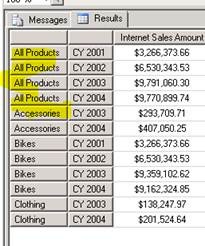
Output in SSMS: All Products visible from SSMS
In SQL 2012 SSDT we have an option of writing MDX queries directly in SSAS Project.
Pretty simple if you haven’t used it…here you will find Query Writer option in same lines you will find in SSRS Project
For opening Query windows in SSDT, open your SSAS database in SSDT and right click on a cube -> Browse this will open your Browse Window ( you can get the same windows in SSMS as OWC is deprecated) and click on design mode button which is highlighted below.

Once opened execute the same query and you will find All Products which were showing earlier will turned to NULL – now question is why?
Output in SSDT, if you do comparison with SSMS Query Windows and this, you will find “All Product” are showing as NULL. 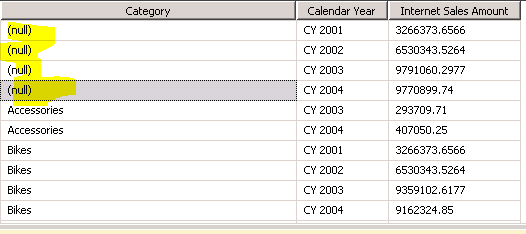
Explanation goes with Format of Query when its executed from SSDT Design Mode or SSRS Vs. in Query Windows of SSMS
Pulled this query from Profiler Trace and the difference you will find in format, in case of SSMS its Native and in-case of SSDT / SSRS its Tabular.
Now what’s tabular format, its basically flattening multi-dimensional result to tabular using Flattening as explained in this article – Flattening Algorithm
Important thing to keep in mind is “If a hierarchy has an ALL member and that member appears on an axis, this is represented in the flattened rowset by a row that has a NULL in every column that corresponds to a level below it”
SSMS:
<PropertyList xmlns="urn:schemas-microsoft-com:xml-analysis">
<Format>Native</Format>
</PropertyList>
SSDT / SSRS
<PropertyList xmlns="urn:schemas-microsoft-com:xml-analysis">
<Format>Tabular</Format>
</PropertyList>
“Another behavior of the flattening algorithm is that the "[(ALL)]" level is not included in the dataset. This has a couple of implications. The first is that if you want to include data from the "All" member of a dimension, you’ll need to create a calculated member to represent this member as shown below:
CREATE MEMBER CURRENTCUBE.[Product].[Category].[All Products].[All Product]
AS aggregate([Product].[Product].members),
VISIBLE = 1 ;
After creating this I had re-executed the query and here is the output with Calc Members
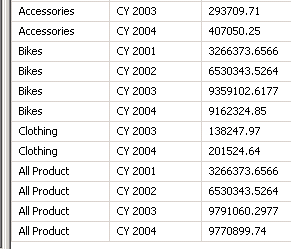
Configuring: PowerPivot for Excel 2013
For configuring PowerPivot in Excel 2013 you need to follow below mentioned steps:
In Excel 2013 By default PowerPivot add-in is disabled and you need to enable it manually –
1) File –> Options –> Add-in –>Manage Select (Com Add-Ins)
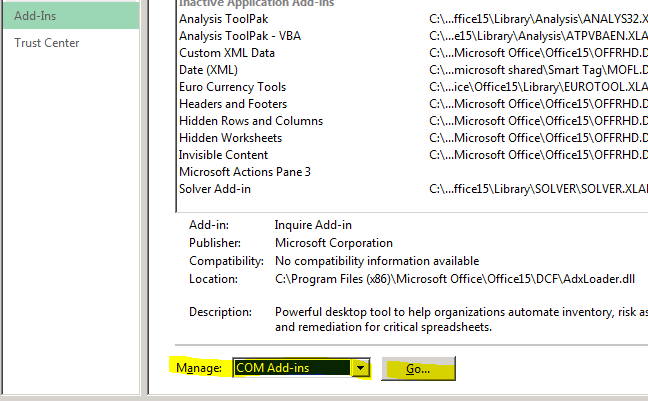
2) After Selecting Com Add-in click GO, by default Add-ins are disabled
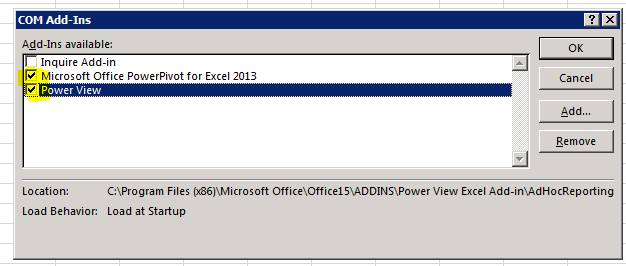
3) After checking required Add-ins, in my case I have selected PowerPivot and Power View; you will be able to get PowerPivot Tab in Ribbon
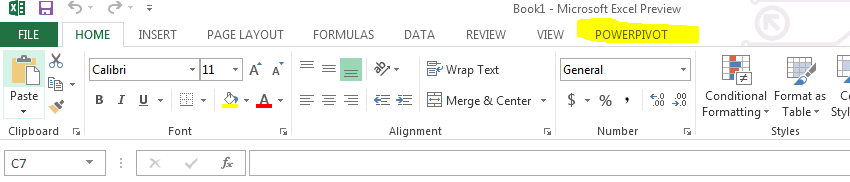
Few things to keep in mind before enabling Add-In
You will need…
- .NET Framework 3.5 SP1 for PowerPivot
- 64 BIT – this will enable PowerPivot to load extremely large data and take leverage of available memory on your box
- Silverlight 5 for Power View
How to use Network Monitor to capture network traffic
Often I need to share these steps with customers while troubleshooting Connectivity issues, so thought to write an article with screenshots which will ease in collecting traces:
Please go to the following URL and install the latest version of Network Monitor 3.4 , make sure you download the right version depending upon your machine’ architecture (64bit or 32bit)
http://www.microsoft.com/en-us/download/details.aspx?id=4865
- Once installed, go to start –>All Program –>Microsoft Network Monitor 3.4 –>Click on Microsoft Network Monitor 3.4

- Once Nentmon is opened, click on File –> New –> Capture
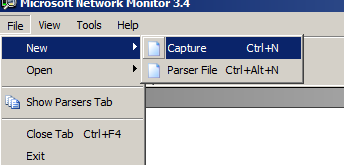
- Click on Capture and then Click on Start Button
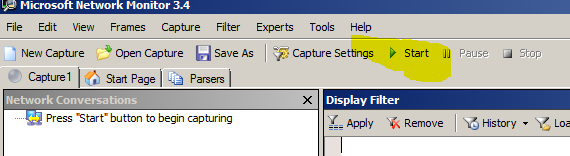
-
After then it will start capturing the packets and you can see the data coming in Frame Summary View, try to reproduce the error and once successfully done click on stop Capturing button

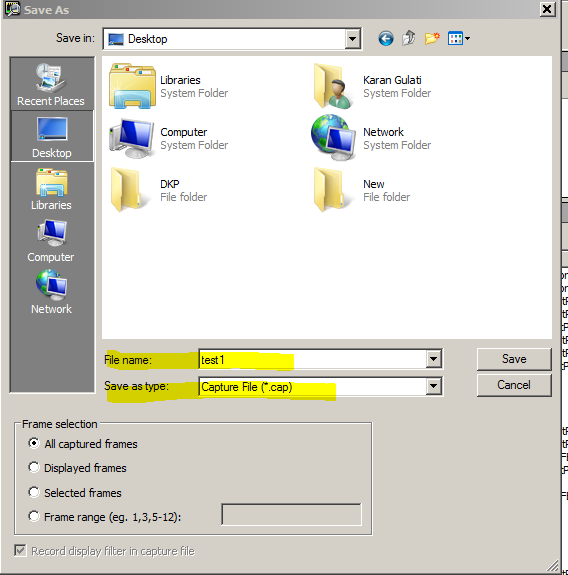
- After Stop –> go to File->Save As with .Cap extension, zip it and mail to me, if I have requested 🙂
Power View Infrastructure Configuration and Installation: Step-by-Step and Scripts
Power View implementation paper is out and covers major scenarios of implementing Power View with PowerPivot and Tabular Server including Kerberos.
Power View Infrastructure Configuration and Installation: Step-by-Step and Scripts
http://msdn.microsoft.com/en-us/library/jj591528
Scenario 1: Install a SharePoint 2010 Farm, Add the Power View and PowerPivot Infrastructure, and an Analysis Services Tabular Instance
Scenario 2: Add the Power View and PowerPivot Infrastructure to the SharePoint 2010 Farm
Scenario 3: Install an Analysis Services Tabular Instance
Scenario 4: Install the Power View Infrastructure (without PowerPivot) on a Single Windows Server 2008 R2 Computer that is a Workgroup Member
Scenario 5: Install Client Tools on a Windows 7 Computer and Verify the Power View and PowerPivot Installations
And Configuring Kerberos
SSAS: All Possible Scenarios of Changing SSAS Data Folder
Title – All Possible Scenarios of Changing SSAS Data Directories
Scenario 1:
Recreating a New Data Folder in New Drive / Same Drive
Creating a New Data Folder and changing the Data File Location in configuration files as shown below –
1. Connect to your Analysis Server in SSMS with a user that is a member of the server role but NOT the user that installed the software
2. Right-click on the server in Object Explorer. Select ‘Properties…’
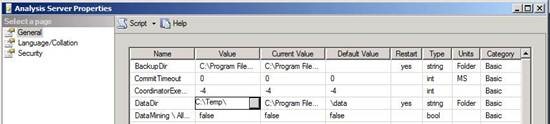
3. On the general tab, change the value of the DataDir property to a different folder (it doesn’t matter what)
4. Click ‘OK’ on “Analysis Server properties” dialog. You will get a message telling you that the server needs to be restarted
5. Restart your Analysis Server in Services panel.
Caveat –
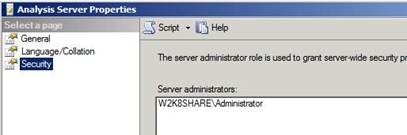
If you change the DataDir property of Analysis Server (i.e. the place that, by default, Analysis Services stores all its data) then you will lose valuable metadata about your installation – namely that you will lose all members of the fixed admin Server Role. The only user who can then connect to Analysis Server and carry out administrative functions is the user that installed the software.
These Screen Shots demos same –


change to c:\temp
request to restart.
Then on Security tab you missed the Server Administrators ….

Simple workaround –
For getting users of Admin Roles you can follow below mentioned steps:
Before applying steps mentioned above take the Script of SSAS Server Admin Roles –
Connect to SSAS
Right-click on the server in Object Explorer. Select ‘Properties…’
Select Page – Security ->On drop down Script ->

Drop Down Script and select Script to a file, now follow below mentioned steps.
1. On the general page, change the value of the DataDir property to a different folder (it doesn’t matter what)
2. Click ‘OK’ on “Analysis Server properties” dialog. You will get a message telling you that the server needs to be restarted
3. Restart your Analysis Server in Services panel.
4. Now log onto the server as the user that originally installed Analysis Services (for this is now the only user that will have server role privelages)
5. Open Script File which we had saved earlier -> Script file will open in XMLA query window.
6. Execute Script and after that you will find all existing users in place.
Scenario 2:
Moving Data Directory of Analysis Services Refer this blog post
In this Scenario, Default Data Folder is V:\Data but while creating partitions developer changed the drive of Partition Directory. In such a case you can use Scenario 2 for Moving Data directory but in this Scenario I will show how to move the Partitions Directory (in case Partition directory got some issues and you need to relocate Partition Files)
Default data folder – V:\Data
Partition 2006 for Sales reside in C:\Partitions
New Location F:\Partitions
First Option:
OPEN Database in BIDS – > Go to Partitions -> In Storage Location Chang the path to new one.
Current-

New –

Before saving ensure that in F drive you have directory with same name, else you will get error stating folder doesn’t exist.
As soon as you hit save you will get this message – so you need to process partition to get it done.
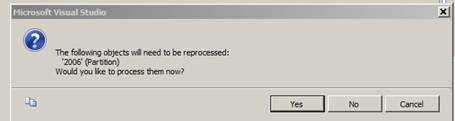
Once you process – you are good, you will get data in new drive-folder.
Second Option:
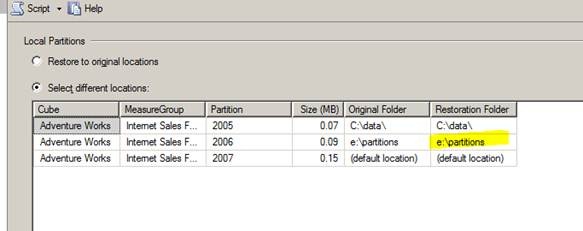
Yes we can use the database backup and during restore change the drive location for specific Partition but if the Partition file size >4gb and AS is 2005, then you will be in trouble J because there is a limitation that a specific file shouldn’t be >4GB (yes fixed in SQL 2008) J
SSAS Monitoring Tool– ASTrace
Guys, We have noticed customers asking a tool for Monitoring SSAS Activities; So we have added new features to an existing ASTrace of SQL 2005 and introduced a new version for SQL 2008/R2 & SQL 2012(MOLAP and Tabular).
With this tool you can monitor minimum to maximum SSAS Information. Architecture is pretty simple, ASTrace runs as a service on any server which got prerequisite installed (as stated in documentation) -> collect trace information based on trace template for an SSAS Instance stated in configuration file (you can customize and use your own trace template) and finally pushes trace data into a SQL Table enabling you to query this SQL Table and pull required information.
You can customize Trace Template, SQL Table and Database Name. Documentation will provide you an idea of enhancements which we had done in new version of ASTrace.
AS Trace2008 (SQL 2008 / R2)
AS Trace2012 (MOLAP / Tabular)
Caveat- By design
Restarting ASTrace Service –
By design, ASTrace will stop auditing whenever you restart the Analysis Service instance. Therefore, any time that you restart Analysis Services you will also need to restart the ASTrace service.
When the ASTrace service restarts, the service automatically writes the content of the existing table, ASTrace, to a new table with a timestamp. For example:
| Old traces | ASTraceTable_Archive_Tuesday, January 31, 201212:56:35 AM |
| New and current traces | ASTrace |
This workaround is required because trace files are always truncated by the function, InitializeAsWriter. Unless you take action to save the existing trace information, when the service restarts, all previous trace information would be lost. To preserve the trace information prior to the service restart, the ASTrace utility programmatically creates a table, adds a timestamp, and writes any existing trace to the time-stamped table. This lets you maintain a history of events prior to the service restart.
This trigger enables you in collating the result of all ASTrace table and you can run a SQL query for pulling information against single table.
Feel free to ping me if you need any assistance.
Disclaimer
These is a sample tool and will not be supported by CSS.
SSAS: how to import data into SQL Engine from SSAS
This will show you how to import data from SSAS to SQL Engine.
Connect to SQL Engine and Right Click on database where you like to import data from SSAS – Let’s say in my case I have a test database
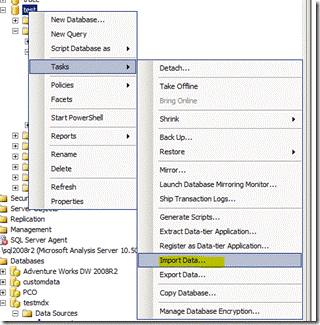
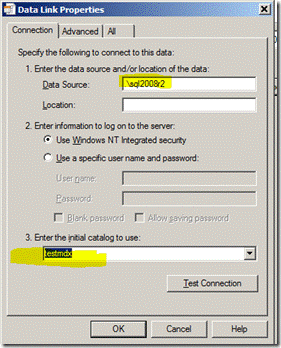
It will open Import Windows – Provide Data Source (Select Provider for Analysis Services – in my case I am using SQL 2008R2, so selected 10.0)

Hit Properties for providing SSAS Server and Database Details
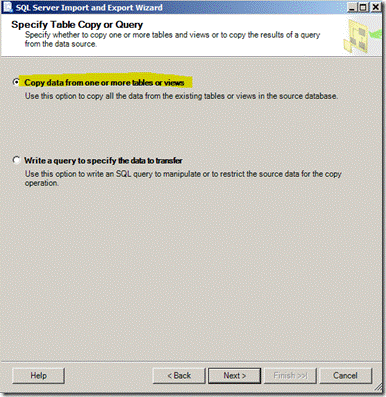
Choose a Destination

So you have an option of Writing a query or select a table – I haven’t explored option of writing Query, so selected Select Table
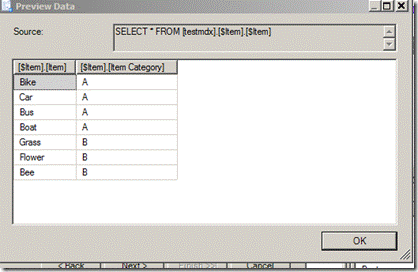
Select Single or Multiple table – for demo purpose, I have selected Item as Source

Hit Preview – this will show you data which you are going to import
there is a gotcha, if you click on Edit Mapping you will find something strange –

Yes, you got it – its data types
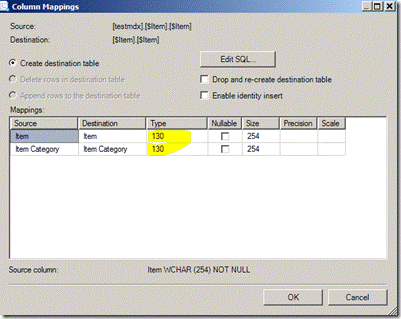
So, you need to change the data types, something as shown below –
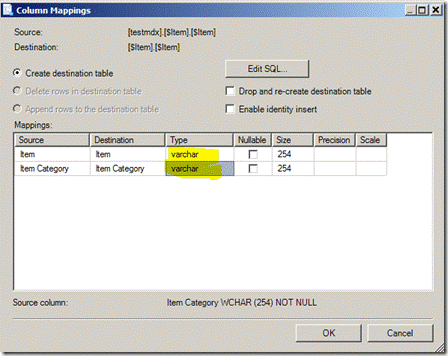
Click OK – > Next and Hit Finish

Some warnings – related to truncate of data, I stated Type as Varchar and Size 254 – so it’s just informing that I can import only that much data in a column,

so I can ignore this message, because I know that I have less than 254 chars in my Attribute / Column / Filed.
After import checked table and found – as I have very small result set, so I can confirm that imported successfully
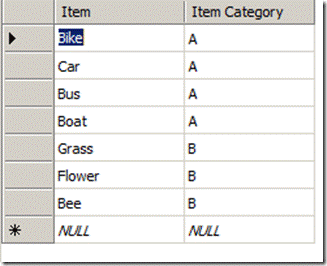
Questions – If I lost my SQL Database (RDBMS), can I use this methodology to get my data back from the SSAS Database?
Answer – No, it may not give you complete data again depends on design of your Database, let’s say you have ROLAP Partitions (Fact) in case of ROLAP you will not able to import data because AS doesn’t store data in SSAS – and if RDBMS source is missing for ROLAP Partition, Select query will not work; for MOLAP you can do but as I said earlier design of your database may impact data import.
As you have seen earlier in Item Dimension, I have only two columns but if you check DSV in a SSAS Database you will find three columns – oops which means, I lost one column – yes you are right.
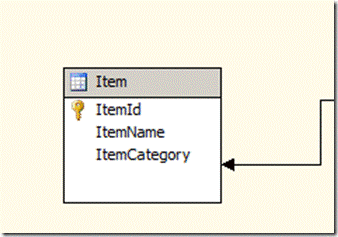
So why Col is missing during import – here is an explanation, if you notice in my Dimension Structure I have only two attributes, that explains why only two columns were visible when we were importing.

Second question is why we are getting Item Name, in Item ID column.
Item – is a key attribute but if you notice Properties of this Key Attribute you will find what’s going on

Notice here, Name Col is ItemName – that explains – why I can’t see ItemId Value when I have imported data; Instead of ID as integer value its showing Name of the Item – which is expected because I set name column property.
Like I told you earlier – for disaster recovery you can’t rely on such imports – you need to have your SQL / RDBMS Backups in Place.
Dimension: ProcessUpdate – Insight
ProcessUpdate applies only to Dimension. It is the equivalent of incremental dimension processing in Analysis Services 2000. It sends SQL queries to read the entire dimension table and applies the changes—member updates, additions, deletions.
Since ProcessUpdate reads the entire dimension table, it begs the question, “How is it different from ProcessFull?” The difference is that ProcessUpdate does not discard the dimension storage contents. It applies the changes in a “smart” manner that preserves the fact data in dependent partitions. ProcessFull, on the other hand, does an implicit ProcessClear on all dependent partitions. ProcessUpdate is inherently slower than ProcessFull since it is doing additional work to apply the changes.
Depending on the nature of the changes in the dimension table, ProcessUpdate can affect dependent (related) partitions. If only new members were added, then the partitions are not affected. But if members were deleted or if member relationships changed (e.g., a Customer moved from Redmond to Seattle), then the aggregation data and bitmap indexes on the related partitions are dropped. The cube is still available for queries, albeit with lower performance.(with ProcessUpdate Flexible aggregations and indexes on related partitions will be dropped)
After ProcessUpdate you need to Process Indexes on the Partitions. The simple approach of dealing with such problem is to do default processing on associated Cubes, default processing will create dropped Aggregations and Bitmap indexes for affected partitions.
Three Options you can use for building Indexes / Aggregates –
Lazy processing is the mechanism by which the Analysis server automatically builds bitmap indexes and aggregations for dimensions and partitions. Lazy processing is done in the background at a low priority, so it does not interfere with foreground operations such as user queries. The advantage of lazy processing is that it reduces the foreground processing time and the cube is available earlier to users, albeit with lower performance.
2) ProcessAffectedObjects while Processing Dimension (Process Update) – that tells the server to reprocess other objects impacted by this command, benefit of this is All Affected Objects will be process in same Batch.
3) Process Index on Measure Groups or Process Default of a Cube
Scenario A: Update a Product Color (Attribute Key is Color) for a single Product which had a Historical Record in Year 2005 and 2006.
1) If you notice for this specific product got sales only in Year 2005 and 2006
select ProductKey,orderdatekey from testinternestsales
where Productkey=324

2) Created A Test Cube based on TestDate and TestProd-
TestDate –
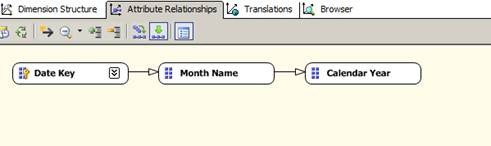
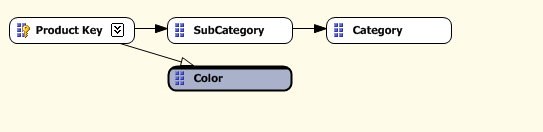
TestProd
With Color – it got Flexible Relationship.
Four Partitions based on –
2005 WHERE OrderDateKey <= ‘20051231’
2006 WHERE OrderDateKey >= ‘20060101’ AND OrderDateKey <= ‘20061231’ and same was for 2007 / 2008

Dimension Usage
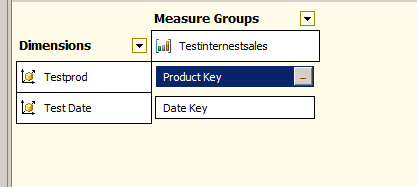
Key Col and Name Col is Color.
![clip_image001[6]](https://karanspeaks.com/wp-content/uploads/2012/05/clip_image0016.png "clip_image001[6]")
3)Auto-Slicing is correct, can be proved by simple query –
Select {[Measures].[Sales Amount]}on 0,[Testprod].[Product Key 1].&[324] on 1
from [Test] WHERE [Test Date].[Calendar Year].&[2005]
![clip_image002[6]](https://karanspeaks.com/wp-content/uploads/2012/05/clip_image0026.jpg "clip_image002[6]")
4) SELECT * FROM SYSTEMRESTRICTSCHEMA($SYSTEM.DISCOVER_PARTITION_DIMENSION_STAT
, CUBE_NAME = ‘TEST’ , DATABASE_NAME = ‘Adventure Works DW 2008R2’ ,MEASURE_GROUP_NAME = ‘Testinternestsales’
,PARTITION_NAME = ‘2005’)
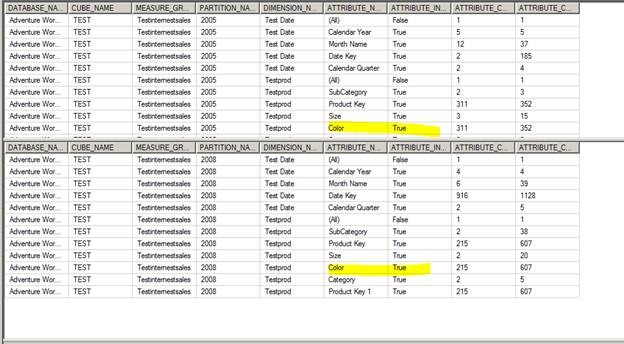
Checking if Indexes are in Place, if you notice here For Color in all years Indexes are in Place.
![clip_image003[6]](https://karanspeaks.com/wp-content/uploads/2012/05/clip_image0036.png "clip_image003[6]") .
.
5)Also checked in Folder
E:\data\Adventure Works DW 2008R2.0.db\TEST.40.cub\Testinternestsales.40.det\2008.37.prt
E:\data\Adventure Works DW 2008R2.0.db\TEST.40.cub\Testinternestsales.40.det\2005.36.prt
Colro.Map files are in place
![clip_image004[6]](https://karanspeaks.com/wp-content/uploads/2012/05/clip_image0046.png "clip_image004[6]")
6)Fired this query for updating Color for ProductID 324 (As shown earlier it got records only for 2005 and 2006 in Fact Table)
update testprod
set color=’Test Green’
where productkey=324
7) Process Update
Fired same DMV and if you notice Attribute Index for Color is dropped for 2005 as well as 2008
![clip_image005[6]](https://karanspeaks.com/wp-content/uploads/2012/05/clip_image0056.png "clip_image005[6]")
Scenario B: Update a Product Color (Attribute Key is Color) for a product which doesn’t have any record in fact table (No History or Current Record)
You can see all flex Aggregates
![clip_image002[11]](https://karanspeaks.com/wp-content/uploads/2012/05/clip_image00211.jpg "clip_image002[11]")
Changed – Color of a Product, which does not have any record in Fact table
After Process Update – all flex aggregates are gone only Index files are left that too for all attributes except Color
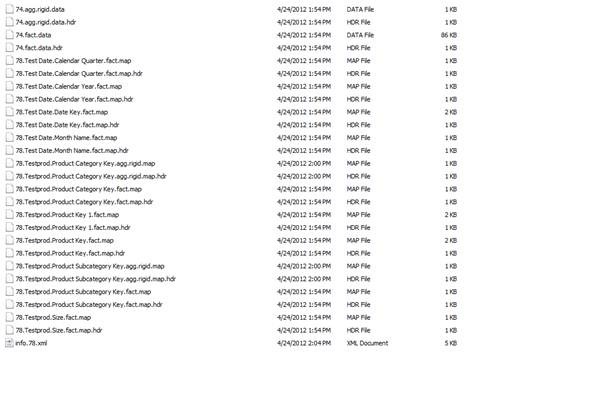
Scenario C In earlier mentioned Scenario – Color is Key Column, for testing I have changed the Key Col – ColorID and Name Col. Kept as Color.
![clip_image001[10]](https://karanspeaks.com/wp-content/uploads/2012/05/clip_image00110.png "clip_image001[10]")
Changed Color
update testprod set color=’ASAT’ where productkey=609
So in this case, I am updating a color but internally I am referring ColorID as Key Column for this Color Attribute. Which internally is not impacting Index Mapping and hence not dropping indexes / aggregates
If your design is somewhere near to Scenario 1 or 2, Indexes / Aggregates will get dropped but if you are following the practice given in Scenario 3, It will not drop indexes because it’s not impacting the Key Col (and that’s why it’s a suggested practice to use Name Col for Attributes).
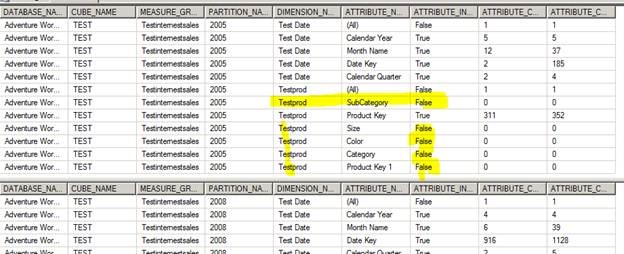
Scenario D: Dropped a record from Dimension and shown an impact on Aggregates. as expected its dropped all Attribute Indexes (Map files) and Flex Aggregates
SELECT * FROM SYSTEMRESTRICTSCHEMA( $SYSTEM.DISCOVER_PARTITION_STAT , CUBE_NAME = ‘Test’, DATABASE_NAME = ‘Adventure Works DW 2008R2’ , MEASURE_GROUP_NAME = ‘Testinternestsales’ , PARTITION_NAME = ‘2005’)
![clip_image002[13]](https://karanspeaks.com/wp-content/uploads/2012/05/clip_image00213.jpg "clip_image002[13]")
Aggregates are present.
SELECT * FROM SYSTEMRESTRICTSCHEMA($SYSTEM.DISCOVER_PARTITION_DIMENSION_STAT
, CUBE_NAME = ‘TEST’ , DATABASE_NAME = ‘Adventure Works DW 2008R2’ ,MEASURE_GROUP_NAME = ‘Testinternestsales’
,PARTITION_NAME = ‘2005’)
Now fired below mentioned query for checking indexes
SELECT * FROM SYSTEMRESTRICTSCHEMA($SYSTEM.DISCOVER_PARTITION_DIMENSION_STAT
, CUBE_NAME = ‘TEST’ , DATABASE_NAME = ‘Adventure Works DW 2008R2’ ,MEASURE_GROUP_NAME = ‘Testinternestsales’
,PARTITION_NAME = ‘2005’)
![clip_image004[9]](https://karanspeaks.com/wp-content/uploads/2012/05/clip_image0049.jpg "clip_image004[9]")

ProductKey 611 doesn’t existing in Fact Table
This signify that we don’t have record for this guy

delete from testprod
where productkey=611
Now if you notice all flex aggs are dropped you can see size as 0

Indexes – for all attributes are dropped because we have deleted a record and it had impacted all Attributes
*———–End of Article—————-*

 Karan Gulati (SSAS Maestro)