Disclaimer:
The views expressed on this website/blog are mine alone and do not reflect the views of my company. All postings on this blog are provided “AS IS” with no warranties, and confers no rights.
SSAS Crashing Intermittently: Caused by Monitoring / AV Scans
April 8, 2013
1 comment
Problem Description:
Analysis Services is crashing intermittently and also producing min-dumps.
Assessment:
This could be one of the issues. For getting full analysis of Mini-Dump you can involve Microsoft Customer Support Services and ask them to analyze dumps.
In this case we found:
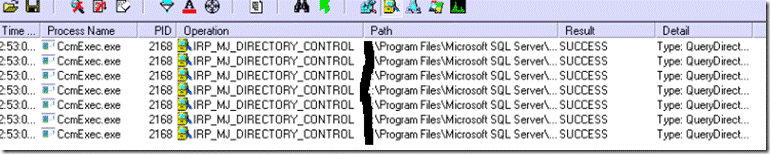
The issue is SMS client (CcmExce) does software inventory periodically, and it scans the data folder of Analysis Services. When a job needs to commit, it has to delete older version of data files. At the moment, the SMS client has a file handle on some of the database files, causing SSAS unable to delete the older version of the database, so commit fails and crashes SSAS
As you can see in this Process Monitor – CcmExec is browsing through SQL Folders:
Resolution
We have resolved issue by making an exception in SMS client not to browse / scan SSAS Folders
– Data
– Temp
– Config
– Log
Recommendations
Exclude Analysis Services folders from Virus Scans, File Monitoring Tools, Systems Management Server Client – CcmExec.exe or any other 3p File Monitoring or File Backup Tool.
For SQL engine follow recommendations are given in this link – http://support.microsoft.com/kb/309422
Categories: Uncategorized
Microsoft TecheEd India 2013: Come and join our session
March 18, 2013
Leave a comment

Categories: Uncategorized
Microsoft BI Authentication and Identity Delegation
March 11, 2013
Leave a comment
From straightforward client/server designs to complex architectures relying on distributed Windows services, SharePoint applications, Web services, and data sources, Microsoft BI solutions can pose many challenges to seamless user authentication and end-to-end identity delegation. SQL Server technologies and data providers expect to use Windows authentication while SharePoint Server uses Web Services Security (WS-Security). Flowing a user identity from a Windows or browser-based BI client application through a claims-based SharePoint service to a Windows backend system is not always possible due to various limitations in data providers, security protocols, and identity services. Network, forest, and federation topologies also influence the authentication flows. Familiarity with the authentication protocols and capabilities, delegation limitations, and possible workarounds is an indispensable prerequisite to delivering a positive BI user experience across the entire Microsoft BI solution stack in enterprise environments.
To review the document, please download the Microsoft BI Authentication and Identity Delegation Word document.
Categories: Uncategorized
Connectivity Issue: "A connection cannot be made to redirector. Ensure that ‘SQL Browser’ service is running"
February 20, 2013
Leave a comment
Symptoms:
SSAS Named Instance running on cluster with two nodes, on one instance we are able to connect SSAS using Name Instance but when you failover to other node and try to connect we get error message
SSAS Cluster Virtual Server Name – SSASVirtualServer
Instance is MySSAS
Two Nodes:
NodeA
NodeB
When NodeA is owner of SSASVirtualServer and we connect SSASVirtualServer\MySSAS it works but when we failover SSASVirtualServer to NodeB and try to connect SSASVirtualServer\MySSAS it fails with error:
A connection cannot be made to redirector. Ensure that ‘SQL Browser’ service is running.
Cause:
The startup of SQL Browser account does not have permission to access msmdredir.ini. The startup account of SQL Browser should have both Read and Write permission to the ASconfig folder or its child objects.
By default, the SQL Browser will periodically check and update the 90\Shared\ASConfig\msmdredir.ini file to ensure it knows the named instance SSAS info(port..etc) and it will translate client who needs to connect to the named instance SSAS to the correct name and port.
Solution:
a. If the SQL Browser is running under "NT Authority \local service" account, ensure the account has permission (read/write) to the C:\Program Files (x86)\Microsoft SQL Server\90\Shared\ASConfig folder and its child objects. If the SQL Browser is run under other account, please ensure the same.
b. If you are not sure about permission change from Local Service to Local System and restart services.

Today, we have resolved issue of same nature – thanks Saman Alaghehband for his time and patience
Note: On Cluster Environment it is always recommended to connect using SSAS Virtual Server Name
Refer:
Categories: Uncategorized
DAX: Using filter and summarize in same Query
February 15, 2013
Leave a comment
In this SQL Query we are grouping Sales by Year and Color plus adding a filter of 5000
select CalendarYear,color,sum(SalesAmount) from [DimProduct] join FactInternetSales
on DimProduct.[ProductKey]=FactInternetSales.[ProductKey]
join DimDate
on dimdate.datekey=FactInternetSales.OrderDatekey
Group by CalendarYear,color
Having sum(salesamount)>5000
order by CalendarYear,color

Equivalent Dax of achieving same is:
evaluate( filter (summarize (‘Internet Sales’, ‘Date'[Calendar Year],
‘Product'[Color] ,"Sales Amount",sum(‘Internet Sales'[Sales Amount]))
,Calculate(sum(‘Internet Sales'[Sales Amount]))>5000))
order by ‘Date'[Calendar Year],
‘Product'[Color]

Categories: Uncategorized
PowerShell:How to List Database Roles and their Members
February 5, 2013
Leave a comment
1: [Reflection.Assembly]::LoadWithPartialName("Microsoft.AnalysisServices")
2: $ServerName = ".\sql2008r2"
3: $DB = "Adventure Works DW 2008"
4: $Server = New-Object Microsoft.AnalysisServices.Server
5: $Server.Connect($ServerName)
6: $SSASDatabase = $Server.Databases.Item($DB)
7: $SSASDatabase.Roles | Select Name, Members
.csharpcode, .csharpcode pre { font-size: small; color: black; font-family: consolas, “Courier New”, courier, monospace; background-color: #ffffff; /*white-space: pre;*/ } .csharpcode pre { margin: 0em; } .csharpcode .rem { color: #008000; } .csharpcode .kwrd { color: #0000ff; } .csharpcode .str { color: #006080; } .csharpcode .op { color: #0000c0; } .csharpcode .preproc { color: #cc6633; } .csharpcode .asp { background-color: #ffff00; } .csharpcode .html { color: #800000; } .csharpcode .attr { color: #ff0000; } .csharpcode .alt { background-color: #f4f4f4; width: 100%; margin: 0em; } .csharpcode .lnum { color: #606060; }
Categories: Uncategorized
Hardware Sizing a Tabular Solution (SQL Server Analysis Services)
January 11, 2013
Leave a comment
Applies to: SQL Server 2012 Analysis Services, Tabular Solutions
Summary: Provides guidance for estimating the hardware requirements needed to support processing and query workloads for an Analysis Services tabular solution.
Download from here (Hardware Sizing a Tabular Solution (SQL Server Analysis Services) Word document.
Categories: Uncategorized
HDInsight on Windows: Building PowerPivot Report from Hive in a Few Easy Steps (PDF)
January 7, 2013
Leave a comment
Download Step by Step PDF from Slide Share
Categories: HDInsight, PowerPivot
HDInsight on Windows: Building PowerPivot Report from Hive in a Few Easy Steps
January 4, 2013
2 comments
What are we Covering:
- Hive
- Create table
- Load Data
- Query Data
- Configure ODBC
- Create PowerPivot
- With DataSource as HDInsight
- Import Data from HDInsight
- Create Pivot Chat using imported data
(1)Open Hadoop Command Line
After installing HDInsight for Windows you will get Hadoop Command Line Shortcut on desktop
Click on Hadoop Command Line Shortcut and it will open Cmd Line for Hadoop

(2)Type Hive and it will change to Hive Command

(3)Create Tables
CREATE TABLE emp(id int,name string)ROW FORMAT DELIMITED FIELDS TERMINATED BY ‘,’;
CREATE TABLE sales(id int,sales int)ROW FORMAT DELIMITED FIELDS TERMINATED BY ‘,’;

(4)Load Data using CSV Files
LOAD DATA LOCAL INPATH ‘c:/data/emp.csv’ OVERWRITE INTO TABLE emp;

LOAD DATA LOCAL INPATH ‘c:/data/sales.csv’ OVERWRITE INTO TABLE sales;

(5) Open HDInsight Dashboard (You will find shortcut on desktop) and click on Download

(6)Click on the appropriate link for your Excel.

(7)Configure ODBC
For configuring ODBC, Click start and type in ODBC. This will bring up the Data Sources dialog. Go to the System DSN tab and click Add. Configure it with a Data Source Name, Your Host Information, and a Username. In Single Node HDInsight Installation you don’t need to provide Username but if you are using HDInsight on Azure you can provide Username .

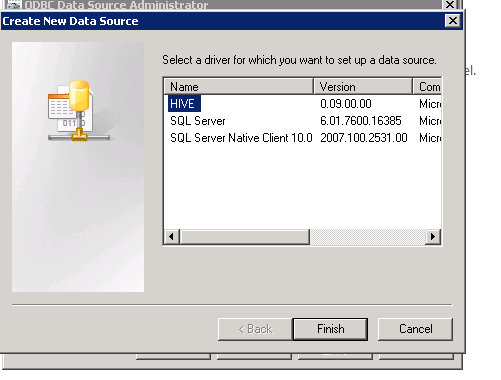
(8) Provider Data Source Name and Default Port is 10000

(9)Open Excel Sheet, select PowerPivot in ribbon and click on Manage

(10)Click on Get External Data
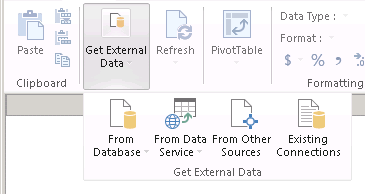
(11)Select – Get External Data and Data Import window and Select Others(OLEDB/ODBC)

(12)Click Build

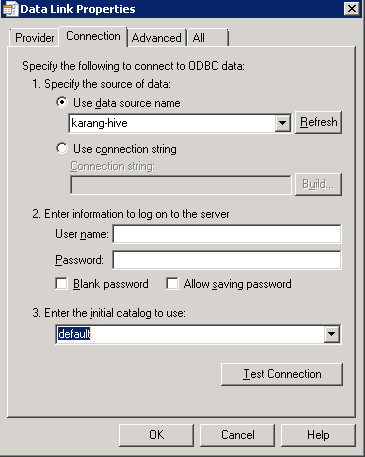
(13)Select OLE DB Provider for ODBC

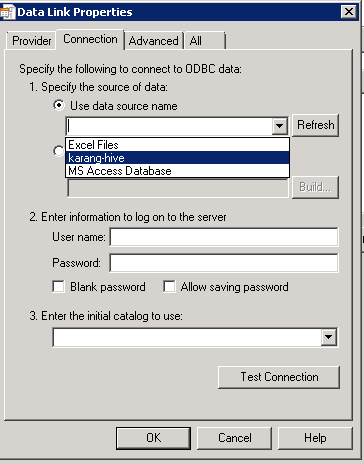
(14)Select DSN which we have created earlier in step number 8, Select Database (In Single Node HDInsight installation you don’t need to provider User Name and Password in current release but in case of HDInsight on Azure you need to provide User Name and Password) and follow the wizard for selecting tables in our case its EMP and Sales


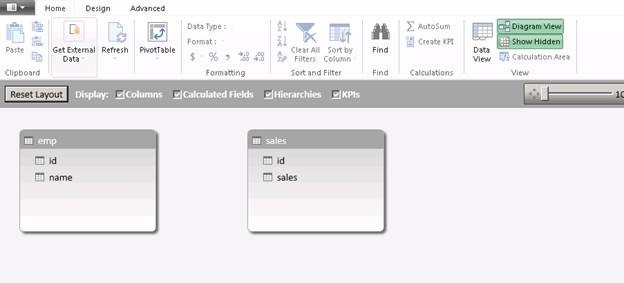
(15)If you Notice Relationship between Emp and Sales is absent so with one click we can create relationship
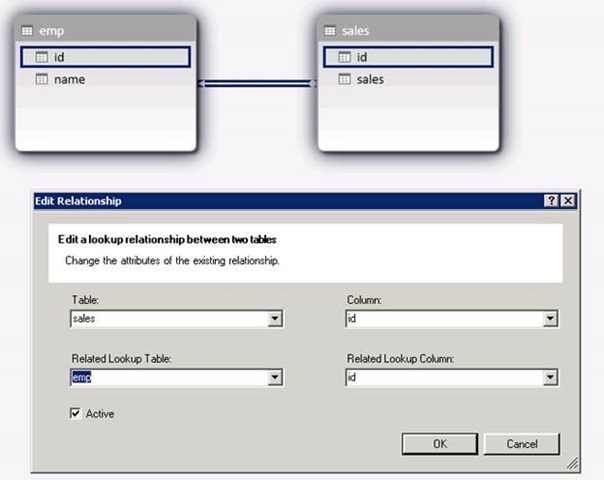
(16)Added feature like Calculated Measure name Sales and created a KPI

(17)Select Pivot of your Choice from PivotTable

(18) Finally – you are good to go with PowerPivot Report based on Hive

Refer
Categories: HDInsight, PowerPivot
Big Data, Hadoop, HDInsight, PowerPivot
HDInsight – What is it?
January 4, 2013
4 comments
HDInsight is Microsoft’s Hadoop-based distribution.
HDInsight comes in two flavors:
HDInsight Server for local on-premise installation of the Hadoop distribution, this will allow to build local cluster with your own Hadoop Hive able to run Hadoop Jobs, on  top of that fully integration with Microsoft BI Stack
HDInsight on Azure Service is the easiest way to deploy, manage and scale Hadoop based solution. Current release includes:
- HDFS and Map/Reduce
- Pig
- Hive
- Sqoop
HDInsight:

 Karan Gulati (SSAS Maestro)