Disclaimer:
The views expressed on this website/blog are mine alone and do not reflect the views of my company. All postings on this blog are provided “AS IS” with no warranties, and confers no rights.
SQL – Parallel Data Warehouse (PDW)
December 28, 2012
Leave a comment
Categories: Appliance, Data Warehouse, DataWarehouse, DW, PDW, SQL PDW, SQL PDW;PDW;Data Warehouse;Appliance
Datawarehouse, PDW, SQLPDW
Terms: Data Warehouse and SSAS
December 24, 2012
Leave a comment
Overview of DW and SSAS Terms, handy PPT which you can use while explaining basis concepts to users.
Categories: Data Warehouse
Datawarehouse
Cleared SSAS Maestro (MCM)
December 19, 2012
1 comment
Finally achieved highest certification in SSAS world.
What is the SSAS Maestros?
The SSAS Maestro program was created as a way to share the lessons learned by enterprise customers of the SQL Customer Advisory Team (SQLCAT) using complex SQL Server 2008 R2 Analysis Services and a Unified Dimensional Model (UDM).
Requirements
Because of the complexity of the subject matter and the depth of the lessons, the course has strict requirements, including the following:
-
Applicants will be accepted based on their depth of technical experience with Analysis Services.
-
The three-day course will include several labs that intentionally provide very little guidance.
-
Upon completion of the course, attendees will be given a take-home exam project that they will need to complete within thirty (30) days.
Following the technical conference conventions defining 400-level sessions, this is a 500-level course. It is modeled after the MCM SQL certification program.
Additional Microsoft hosted SSAS Maestro training courses will be available in the near future. Check back on this site for updates. For questions or for a list of courses hosted by certified Maestro trainers, please email
Categories: Uncategorized
SSAS Synchronization: Across different versions
October 24, 2012
Leave a comment
Problem Statement: Synchronization between different builds or versions of Analysis Services.
Solution: The Synchronize Database Wizard makes two Microsoft SQL Server Analysis Services databases equivalent by copying the data and metadata from a source server to a destination server. This wizard can also be used to deploy a database from a staging server onto a production server, or to synchronize a database on a production server that has changes made to the data and metadata in a database on a staging server.
Apart from Data it copies the metadata, which makes Synchronization between different builds unsupported and you can’t synchronize across major versions or service packs.
Categories: Uncategorized
SSAS encryption
October 23, 2012
Leave a comment
Description: Customer asking if AS supports TDE like encryption we got in SQL Engine.
Solution:
SSAS doesn’t support any data encryption on disk, in simple words – SSAS doesn’t do any kind of encryption.
What it supports:
HTTPS –
You can use Analysis Services using PUMP and configure pump with HTTPS
Windows File System encryption –
You can use Windows File System encryption (Windows Server 2003) or BitLocker (on Windows Server 2008 and Windows Server 2008 R2) to encrypt the drive used to store cubes. Be careful, though; encrypting MOLAP data can have a big impact on performance, especially during processing and schema modification of the cube. We have seen performance drops of up to 50 percent when processing dimensions on encrypted drives though less so for fact processing. Weigh the requirement to encrypt data carefully against the desired performance characteristics of the cube.
References:
Encrypting File System in Windows XP and Windows Server 2003
Use ROLAP partitions –
Use ROLAP for very confidential data and store the data in a TDE encrypted Database.
Caveat – ROLAP comes with its Performance cost, so keep that in mind.
Categories: Uncategorized
SSAS Data Collection: Collecting Perfmon for SSAS
October 1, 2012
1 comment
Applies to Windows7, Windows 2008/R2 and Vista
SQL Server all builds >= SQL 2005
Generally, for troubleshooting SSAS Issues, we recommend to collect below mentioned Perfmon Counters
– All Counters Related to SSAS (MSAS_ or MSOLP$)
For default instance SSAS Counter Name suffix with MSAS.n and for named instance it start with MSOLAP$Instance Name
– System, Process, Processor, Physical Disk, Logical Disk, Memory , Page File
· Got to Run & type Perfmon
· Under Data Collector Set, right click on User Defined and Click New Data Collector Set

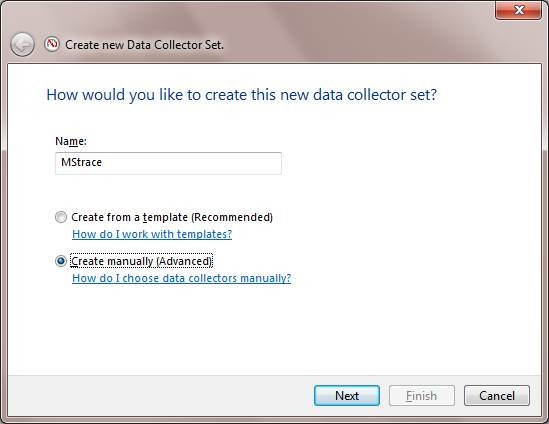
· Create New Data Collect Set and Give name as MSTrace & Select Create Manually, Click Next
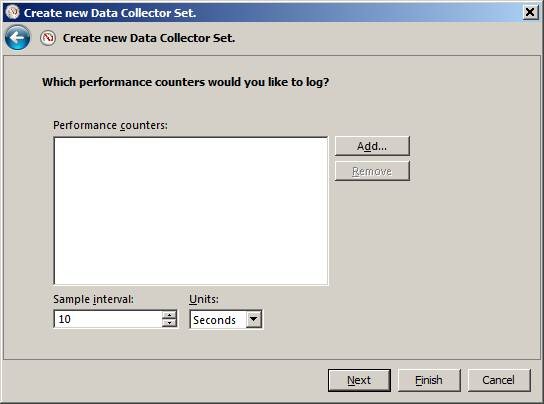
· Click on Add required counters (Sample Interval as 10 Seconds)

· Here you can specify the Run as user which has Admin Access over box (in case you have logged with credential which is non admin)

- By default Location of Trace file is – %systemdrive%\PerfLogs\Admin\ but you can change it.
Right Click on Newly Created Trace – Mstrace and select Properties – In Properties under directory tab you can specify the location also you can schedule as per your requirement.
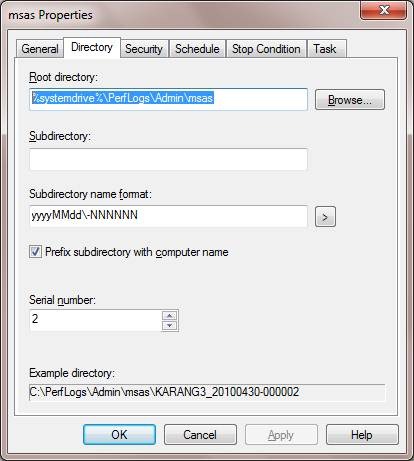
Once you are done with that click OK and Run trace as shown below

Reproduce the issue and collect traces, once you are done just stop traces and check for traces in location which you had provided in Properties.
Categories: Uncategorized
Getting Deadlock Error During Processing
September 27, 2012
Leave a comment
Issue:
Intermittently Getting below mentioned error during processing
OLE DB error: OLE DB or ODBC error. Transaction (Process ID n) was deadlocked on thread| communication buffer resources with another process and has been chosen as the deadlock victim.
Cause:
A deadlock is a circular blocking chain, where two or more spids are each blocked by the other so that no one can proceed.
You don’t have control over the Select Statement generated by SSAS Processing job (If you are not using Named Query in DSV), in that case you need take care of things from SQL Engine Perspective.
Here are few recommendations, which can reduce deadlock situation:
- Use separate environment for Reporting and Transaction
- Ensure the database design is properly normalized.
- Have the application access database objects in the same order every time.
- Avoid cursors in DW environment
- Use as low a level of isolation as possible for user connections.
- Right indexes for getting correct execution plan (rebuild indexes after huge data modifications)
- Have updated Statistics what will generate a right execution plan
- During DW data refresh don’t do Cube Processing
- In DSV refer View instead of Tables – Processing through a view provides you with an extra layer of abstraction on top of the database is a good design strategy. In the view definition, you can add a NOLOCK or TABLOCK hint to remove database locking overhead during processing.
- Try experiment with MAXDOP setting – Set it to one, in your dev / test environment and see if you can reproduce issue; Keep in mind Performance Caveat of using MAXDOP=1.
Ref:
Categories: Uncategorized
SSDT Query Builder: MDX Query returning NULL instead of AllMembers
September 19, 2012
1 comment
*SSDT – SQL Server Data Tools
*SSMS – SQL Server Management Studio
In SSDT Query Designer getting Null for All members:
One of my customers recently reported this issue so thought of sharing with world……
Demo given below will provide an insight……………
Simple query, where we are doing cross join of allmembers from Product and Date dimension
select non empty ([Product].[Category].allmembers*[Date].[Calendar].[Calendar Year].allmembers ) on 1,
([Measures].[Internet Sales Amount]) on 0
from [Adventure Works]
Output in SSMS: All Products visible from SSMS
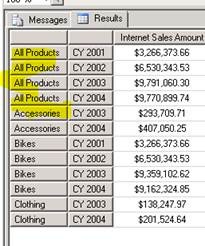
In SQL 2012 SSDT we have an option of writing MDX queries directly in SSAS Project.
Pretty simple if you haven’t used it…here you will find Query Writer option in same lines you will find in SSRS Project
For opening Query windows in SSDT, open your SSAS database in SSDT and right click on a cube -> Browse this will open your Browse Window ( you can get the same windows in SSMS as OWC is deprecated) and click on design mode button which is highlighted below.

Once opened execute the same query and you will find All Products which were showing earlier will turned to NULL – now question is why?
Output in SSDT, if you do comparison with SSMS Query Windows and this, you will find “All Product” are showing as NULL. 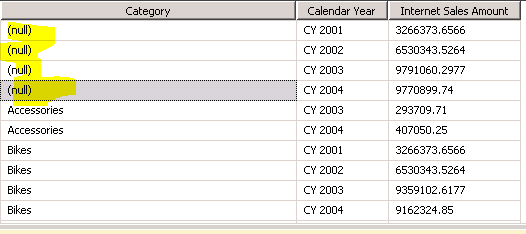
Explanation goes with Format of Query when its executed from SSDT Design Mode or SSRS Vs. in Query Windows of SSMS
Pulled this query from Profiler Trace and the difference you will find in format, in case of SSMS its Native and in-case of SSDT / SSRS its Tabular.
Now what’s tabular format, its basically flattening multi-dimensional result to tabular using Flattening as explained in this article – Flattening Algorithm
Important thing to keep in mind is “If a hierarchy has an ALL member and that member appears on an axis, this is represented in the flattened rowset by a row that has a NULL in every column that corresponds to a level below it”
SSMS:
<PropertyList xmlns="urn:schemas-microsoft-com:xml-analysis">
<Format>Native</Format>
</PropertyList>
SSDT / SSRS
<PropertyList xmlns="urn:schemas-microsoft-com:xml-analysis">
<Format>Tabular</Format>
</PropertyList>
“Another behavior of the flattening algorithm is that the "[(ALL)]" level is not included in the dataset. This has a couple of implications. The first is that if you want to include data from the "All" member of a dimension, you’ll need to create a calculated member to represent this member as shown below:
CREATE MEMBER CURRENTCUBE.[Product].[Category].[All Products].[All Product]
AS aggregate([Product].[Product].members),
VISIBLE = 1 ;
After creating this I had re-executed the query and here is the output with Calc Members
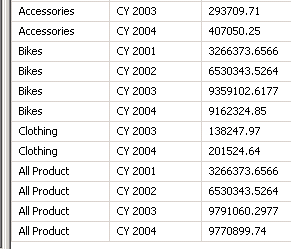
Categories: Uncategorized
Configuring: PowerPivot for Excel 2013
September 18, 2012
5 comments
For configuring PowerPivot in Excel 2013 you need to follow below mentioned steps:
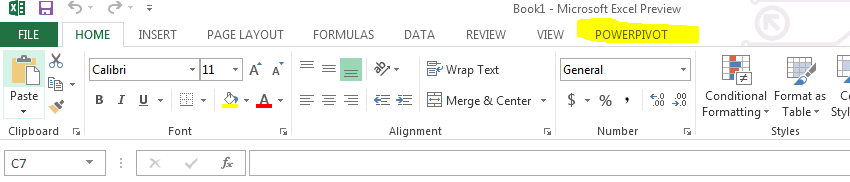
In Excel 2013 By default PowerPivot add-in is disabled and you need to enable it manually –
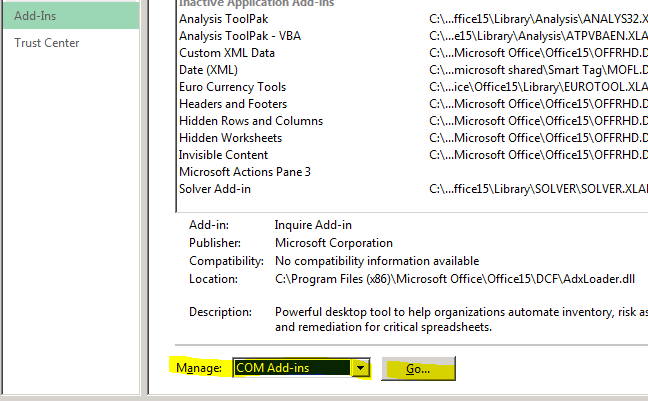
1) File –> Options –> Add-in –>Manage Select (Com Add-Ins)
2) After Selecting Com Add-in click GO, by default Add-ins are disabled
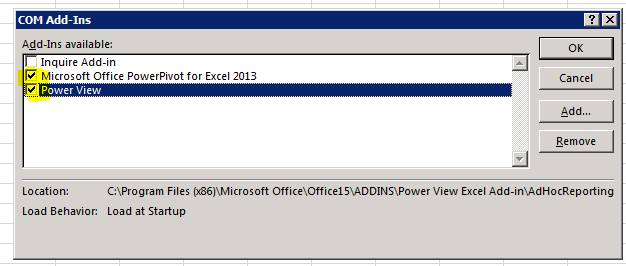
3) After checking required Add-ins, in my case I have selected PowerPivot and Power View; you will be able to get PowerPivot Tab in Ribbon
Few things to keep in mind before enabling Add-In
You will need…
- .NET Framework 3.5 SP1 for PowerPivot
- 64 BIT – this will enable PowerPivot to load extremely large data and take leverage of available memory on your box
- Silverlight 5 for Power View
Categories: Uncategorized
How to use Network Monitor to capture network traffic
September 17, 2012
Leave a comment
Often I need to share these steps with customers while troubleshooting Connectivity issues, so thought to write an article with screenshots which will ease in collecting traces:
Please go to the following URL and install the latest version of Network Monitor 3.4 , make sure you download the right version depending upon your machine’ architecture (64bit or 32bit)
http://www.microsoft.com/en-us/download/details.aspx?id=4865
- Once installed, go to start –>All Program –>Microsoft Network Monitor 3.4 –>Click on Microsoft Network Monitor 3.4

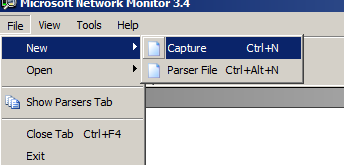
- Once Nentmon is opened, click on File –> New –> Capture
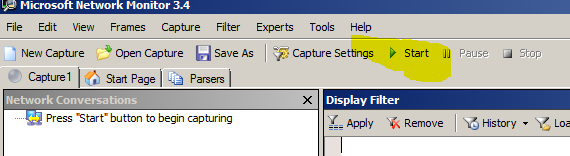
- Click on Capture and then Click on Start Button
-
After then it will start capturing the packets and you can see the data coming in Frame Summary View, try to reproduce the error and once successfully done click on stop Capturing button

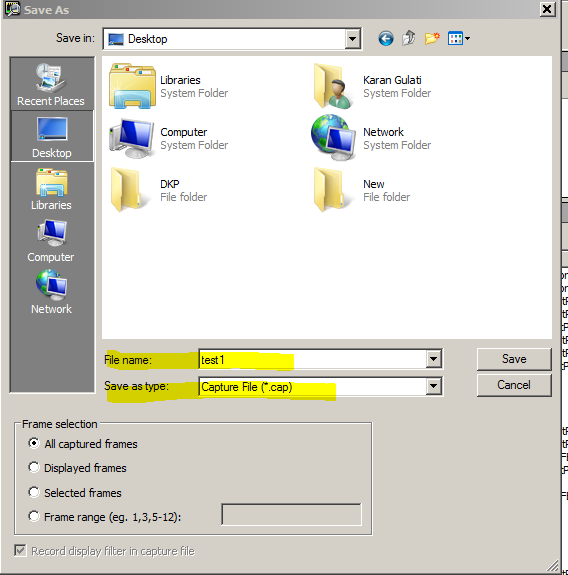
- After Stop –> go to File->Save As with .Cap extension, zip it and mail to me, if I have requested 🙂
Categories: Uncategorized

 Karan Gulati (SSAS Maestro)