Disclaimer:
The views expressed on this website/blog are mine alone and do not reflect the views of my company. All postings on this blog are provided “AS IS” with no warranties, and confers no rights.
Mining Structure: Issue while Processing when DataSource is OLAP Cube
February 20, 2012
1 comment
When processing SSAS Data Mining Structure which is based on a Cube (DataSource is Used as Cube) in such a case Analysis Services uses service Startup Account while processing Mining Structure.

If Analysis Services Startup Account doesn’t have Full Permission on OLAP Cube then processing will fail with below mentioned error:
Errors and Warnings from Response
Internal error: The operation terminated unsuccessfully.
OLE DB error: OLE DB or ODBC error: The UseTransaction and MasterTransaction request properties are reserved for database administrators..
Errors in the OLAP storage engine: An error occurred while processing the ‘Internet ~1 ~MG’ partition of the ‘Internet ~1 ~MG’ measure group for the ‘Customer Clusters ~MC’ cube from the Adventure Works DW 2008R2 database.
Server: The operation has been cancelled.
Errors in the OLAP storage engine: An error occurred while processing the ‘~CaseDetail ~MG’ partition of the ‘~CaseDetail ~MG’ measure group for the ‘Customer Clusters ~MC’ cube from the Adventure Works DW 2008R2 database.
To work around this issue –
Ensure that <ServiceAccountIsServerAdmin> Property in msmdsrv.ini file is set to 1 (True)
Default – Location of msmdsrv.ini file (C:\Program Files\Microsoft SQL Server\MSAS10_50.SQL2008R2\OLAP\Config)
Or
Create a Role in Database – Grant Full Control to this Role and Add Service Account Member of this Role
Categories: Uncategorized
Add a BI Semantic Model Connection Content Type to a Library
January 27, 2012
1 comment
I had hard time in performing these steps in the absence of Screen Shots, so thought of adding this post with Screen Shots.
A BI semantic model connection is created in SharePoint and provides redirection to business intelligence semantic model data in a PowerPivot workbook or Analysis Services tabular model database on a network server. Before you can create a BI semantic model connection in SharePoint, you must extend a document library to allow the creation of a .bism file. This step only needs to be performed once for each library, but you will need to repeat it for any library from which you want to create .bism files. Best practices recommend that you create a centralized library for storing .bism files so that you can manage permissions in one place.
If you already use SharePoint Data Connection Libraries, the BI Semantic Model Connection content type is automatically added to that library template. You can skip the steps in this section if you use a data connection library that already lets you create new BI semantic model connection documents.
You must have at least the Manage Lists permission to add and configure a content type. This permission is built into the Design permission level and above.
- Open the document library for which you want to enable the BI Semantic Model Connection content type.
- On the SharePoint ribbon, in Library Tools, click Library.
- Click Library Settings.
![clip_image002[10]](https://karanspeaks.com/wp-content/uploads/2012/01/clip_image002101.jpg "clip_image002[10]")
- In General Settings, click Advanced settings.
![clip_image004[8]](https://karanspeaks.com/wp-content/uploads/2012/01/clip_image00481.jpg "clip_image004[8]")
Click Yes and OK
![clip_image006[8]](https://karanspeaks.com/wp-content/uploads/2012/01/clip_image00681.jpg "clip_image006[8]")
On the same page under content type click
![clip_image008[5]](https://karanspeaks.com/wp-content/uploads/2012/01/clip_image00851.jpg "clip_image008[5]")
Add Different Content Types
![clip_image010[7]](https://karanspeaks.com/wp-content/uploads/2012/01/clip_image01071.jpg "clip_image010[7]")
To verify you added the content type, go back to the library and click New Document on the Documents area of the library ribbon. You should see BI Semantic Model Connection File in the New Documents list-
![clip_image012[10]](https://karanspeaks.com/wp-content/uploads/2012/01/clip_image012101.jpg "clip_image012[10]")
Click on BISM Connection – SSAS tabular Instance –
![clip_image014[5]](https://karanspeaks.com/wp-content/uploads/2012/01/clip_image01451.jpg "clip_image014[5]")
or you can use PowerPivot workbook
PowerPivot Workbook.
Format – workbook URL – http://localhost/PowerPivot Gallery/Book1.xlsx
![clip_image016[5]](https://karanspeaks.com/wp-content/uploads/2012/01/clip_image01651.jpg "clip_image016[5]")
Add a BI Semantic Model Connection Content Type to a Library (PowerPivot for SharePoint)
References –
Categories: BISM, Power View, Power View, SQL 12
BISM, Power View, SQL 12
Excel: How to Enable Multi Thread in Excel 2010
January 26, 2012
Leave a comment
Can get great performance during Excel Operations by enabling Multi Thread in Excel.
How to Set Number of Threads –
Office Button=>Excel Options=>Advanced=>Formulas ‘Enable multi=threaded

Categories: Excel, Excel Settings
Excel, Excel 2010, Excel Settings
DAX-SUMMARIZE (ROLLUP)
January 11, 2012
1 comment
The following example adds roll-up rows to the Group-By columns of the SUMMARIZE function call.
EVALUATE SUMMARIZE( ‘Internet Sales’,
ROLLUP (‘Date'[Calendar Year],Product[Product Category Name]),
“Sales”, ([Internet Total Sales]),
“Tax”,([Internet Total Tax Amount]))
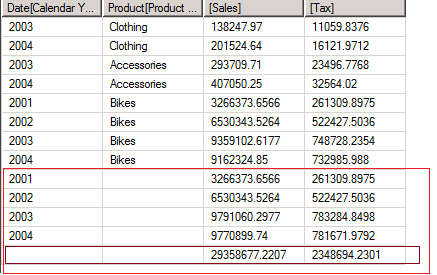
Red Box shows the sub-total of Categories further Brown Box shows Total of all Categories across all years.
Categories: BISM, DAX, SQL 12, Tabular Mode
DAX, SQL 12, Tabular Mode
DAX – SUMMARIZE Statement
January 11, 2012
4 comments
SUMMARIZE function returns a summary table for the requested totals over a set of groups. Readers familiar with T-SQL SELECT statement, this is the equivalent of writing a query using the GROUP BY clause.
Syntax –
SUMMARIZE(<table>, <groupBy_columnName>[, <name>, <expression>]…)
Demo –
The Following example returns summary of the Internet Sales grouped around Country, Category & Calendar
EVALUATE SUMMARIZE( ‘Internet Sales’,
Geography[Country Region Name],
Product[Product Category Name],
‘Date'[Calendar Year],
“Internet Total Sales”,
‘Internet Sales'[Internet Total Sales])
Notice you do not need to define the relationships between tables when using SUMMARIZE because the relationship is defined in the model.
Output –
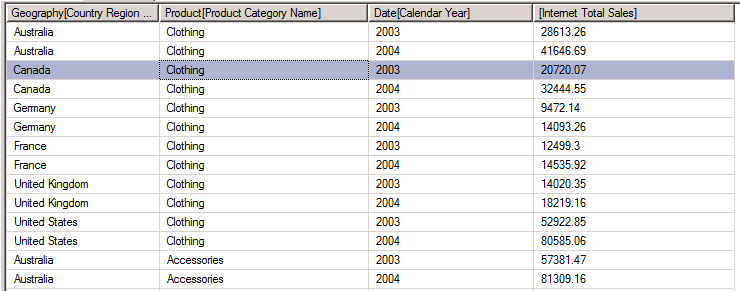
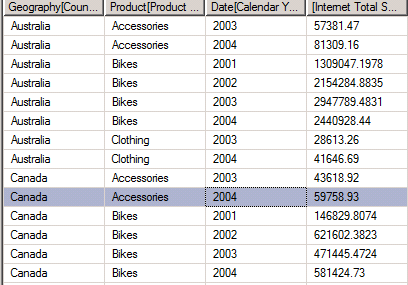
Currently I am getting expected output but output is not sorted for sorting I need to use another function – Order By
EVALUATE SUMMARIZE( ‘Internet Sales’,
Geography[Country Region Name],
Product[Product Category Name],
‘Date'[Calendar Year],
“Internet Total Sales”,
‘Internet Sales'[Internet Total Sales])
ORDER BY Geography[Country Region Name], Product[Product Category Name],’Date'[Calendar Year]

Further I can add measure to Order By –EVALUATE SUMMARIZE( ‘Internet Sales’,
Geography[Country Region Name],
Product[Product Category Name],
‘Date'[Calendar Year],
“Internet Total Sales”,
‘Internet Sales'[Internet Total Sales])
ORDER BY Geography[Country Region Name], Product[Product Category Name],’Date'[Calendar Year], ‘Internet Sales'[Internet Total Sales]
Categories: BISM, DAX, SQL 12, Tabular Mode
DAX, SQL 12, Tabular Mode
What is a Windows Azure Boot Camp?
January 11, 2012
1 comment
Windows Azure Boot Camp is a two day deep dive class to get you up to speed on developing for Windows Azure. The class includes a trainer with deep real world experience with Azure, as well as a series of labs so you can practice what you just learned. ABC is more than just a class, it is also an event in a box. If you don’t see a class near you, then throw your own. We provide all of the materials and training you need to host your own class. This can be for your company, your customers, your friends, or even your family.
Good News – Its Free
Categories: Uncategorized
SQL Server Virtual Labs
January 6, 2012
2 comments
One place where you can learn all new features of SQL 12 without even installing single component on your machine.
Virtual Labs enable you to quickly evaluate and test Microsoft’s newest products and technologies through a series of guided, hands-on labs that you can complete in 90 minutes or less. There is no complex setup or installation required, and you can use Virtual Labs online immediately, free.
http://www.microsoft.com/sqlserver/en/us/learning-center/virtual-labs.aspx
Categories: BISM, SQL 12, Tabular Mode
It takes 4 Clicks to Build a Model (Cube) in Denali Tabular Mode
December 25, 2011
2 comments
Click 1 – Create a Tabular Project
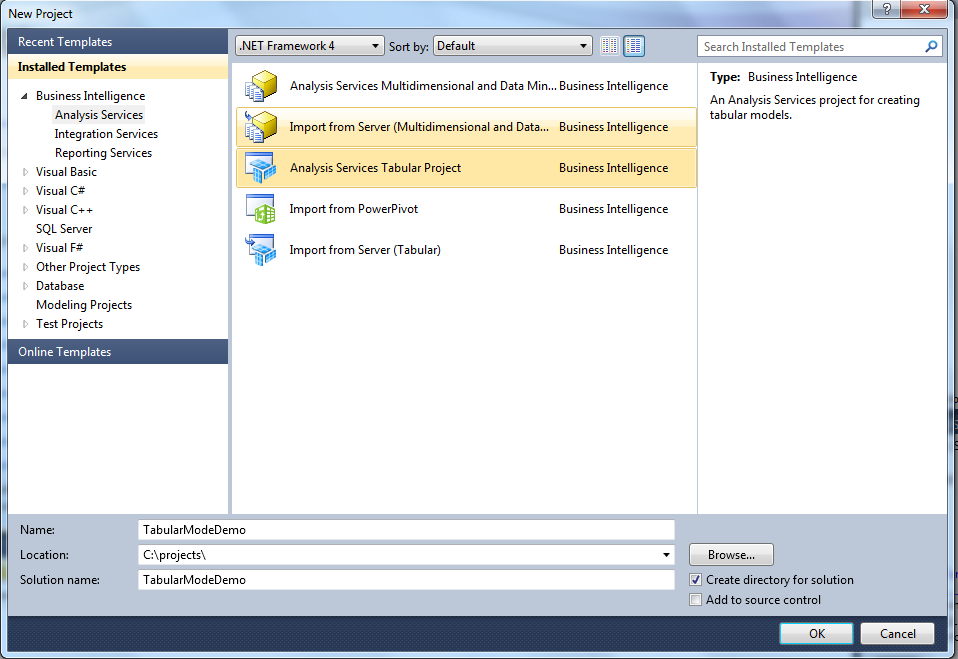
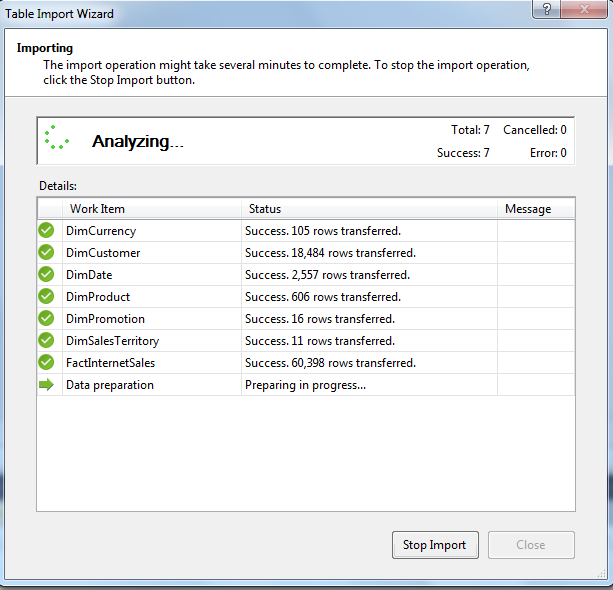
Click 2 – Import Tables (Master / Facts) from DW

Click 3 – Adding Measure
As you can see I have added 2 Measures –
Sum (TotalProductCost)
Sum of TotalProductCost:=SUM([TotalProductCost])
Sum of SalesAmount:=SUM([SalesAmount])

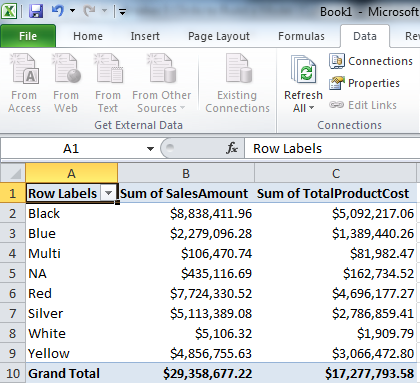
Click 4 – Viewing Cube in Excel
Click on Excel Symbol on Tool Bar, this will open Cube in Pivot Table
(Ensure that Excel is installed in your workstation)

In PivotTable – Selected Color (Product – Color) Attribute and two Measures which we had created

Categories: BISM, SQL 12, Tabular Mode
BISM, SQL 12, Tabular Mode

 Karan Gulati (SSAS Maestro)